| Company | Products | Support | Ordering | Contact Us | |||||||||||
|
CD Tower and Virtual CD Tower
Email Us
©2001 Academy Computer Services, Inc.
|
Configuring Shares The Basics
RAID groups are invisible to the user (and the network) until a SHARE is created. A share is the "entry point" in to the RAID. Once the share is created, the share is visible in Network Neighborhood, directly under the NAS server name.
The share can point to a RAID or a subdirectory on that RAID. But a share isn't the RAID itself. The directory structure is not the same as a share structure. The directory structure is the collection of physical directories and subdirectories in the RAID. The share is a path to those directories.
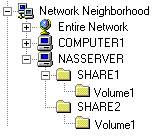
The volume name and the share name do not need to be the same. The physical volume might be named /VOL1 and the share named SHARE1. The volume could be /SPACLEY and the share could be named JETSON if you wanted. It is possible to have multiple shares for the same RAID. If two shares are directed at the RAID itself (and not a subdirectory of that RAID), any volumes created in one share will be visible to both shares. In the example to the right, both shares point to the same RAID: a RAID that contains a volume named Volume1. Click here for an example of how shares work.
|
||||||||||
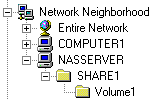 A VOLUME is a directory under the share. This volume is visible to all users who have access to the share.
How do you create a new volume? Navigate through Network Neighborhood (or the Windows Explorer) into the share. Click on the File menu. Select New. Select Folder. Name the volume.
Data can be stored in the share or in the volume. Just as it would be in a hard drive or folder on a local workstation.
A VOLUME is a directory under the share. This volume is visible to all users who have access to the share.
How do you create a new volume? Navigate through Network Neighborhood (or the Windows Explorer) into the share. Click on the File menu. Select New. Select Folder. Name the volume.
Data can be stored in the share or in the volume. Just as it would be in a hard drive or folder on a local workstation.